Microsoft’s tools are embedded in the daily working life of most UK businesses — Outlook for email and calendars, Office for documents, Teams for meetings. A CRM that fights against those tools, rather than working with them, creates friction your team will feel every single day.
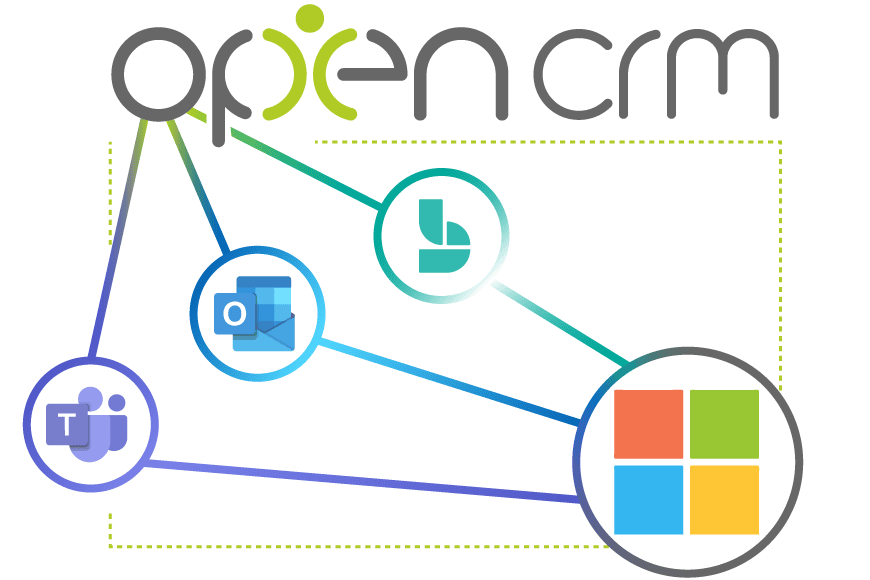
- Most teams already live in Outlook and Microsoft 365 — a CRM should fit around that, not replace it.
- Two-way Outlook sync keeps emails, calendars and contacts consistent without double entry.
- Office document integration means proposals and reports are created in familiar tools, not a separate editor.
- Teams integration keeps meeting notes and call records attached to the right customer record automatically.
- The goal is always the same: less admin, more time spent on the actual relationship with the customer.
That’s why Microsoft integration has always been a priority for OpenCRM. Rather than asking your team to abandon the tools they already know, we’ve built deep, native connections so your CRM and your Microsoft stack work as one system.
Outlook Integration
Email is still where most customer conversations happen. Our Outlook integration means those conversations don’t get lost outside the CRM. Emails sent and received in Outlook can be logged automatically against the relevant Contact, Company or Opportunity, giving your whole team a single, accurate history — without anyone having to manually forward or copy anything across.
Calendar sync works the same way. Book a meeting in Outlook, and it appears against the right record in OpenCRM. Book an appointment in OpenCRM, and it appears in Outlook. Your diary stays one diary, wherever you’re looking at it from.

Do we have what it takes?
We don’t restrict which features you have access to in OpenCRM based on how many users you have. You get everything right out of the box.
Find out more →Microsoft 365
Proposals, quotes and reports are usually built in Word or Excel, not inside a CRM’s own document editor. Rather than forcing your team to learn a new tool, OpenCRM’s Microsoft 365 integration lets you generate and work with documents using the templates and formatting your business already relies on.
This keeps document creation fast and familiar, while still pulling live data — contact details, deal values, product lines — straight from the CRM record, so nothing has to be typed twice.
Teams
As more meetings happen over video call than in person, keeping a record of what was discussed matters more than ever. Our Teams integration means meetings booked and held in Teams can be linked back to the relevant CRM record, so notes, attendees and outcomes stay attached to the customer, not scattered across someone’s personal meeting history.

Let us take you on a tour
Why not chat with one of our team as they take you through how the Microsoft integrations work in practice?
Find out more →Why This Matters to You
None of this is integration for its own sake. Every connection exists to remove a piece of manual admin — the double-entry, the copy-and-pasting, the “did I log that email?” uncertainty. The less time your team spends managing the CRM itself, the more time they have for the actual relationship with the customer.
If your business runs on Microsoft’s tools day to day, a CRM that integrates properly with them isn’t a nice-to-have. It’s the difference between a system your team fights with, and one they barely notice is there.

Already living in Microsoft 365?
See how OpenCRM fits straight into your existing Outlook, Office and Teams workflow.
Start your free trial